Disclosure: This post contains affiliate links for OpenArt and Suno. If you sign up through them, Studio Hacks may earn a commission at no extra cost to you. OpenArt is for users 18+. Always check each product’s current pricing and licence terms before you publish commercially.
A weak thumbnail kills a strong video. You can nail the script, the edit, and the hook — and still lose the click because the packaging looks soft, cluttered, or samey as everyone else in the feed. This walkthrough shows a practical way to make YouTube thumbnails with OpenArt: plan the click, generate bold stills, keep a face (or a locked character) consistent, add title treatment outside OpenArt, and export at the right size. No screenshot homework. No fake “before/after UI” galleries.
If you do not already have an OpenArt account, start here: OpenArt. If your video (or Short) needs an original track and you do not have Suno yet, grab that here: Suno.
What a “clickable” thumbnail actually needs
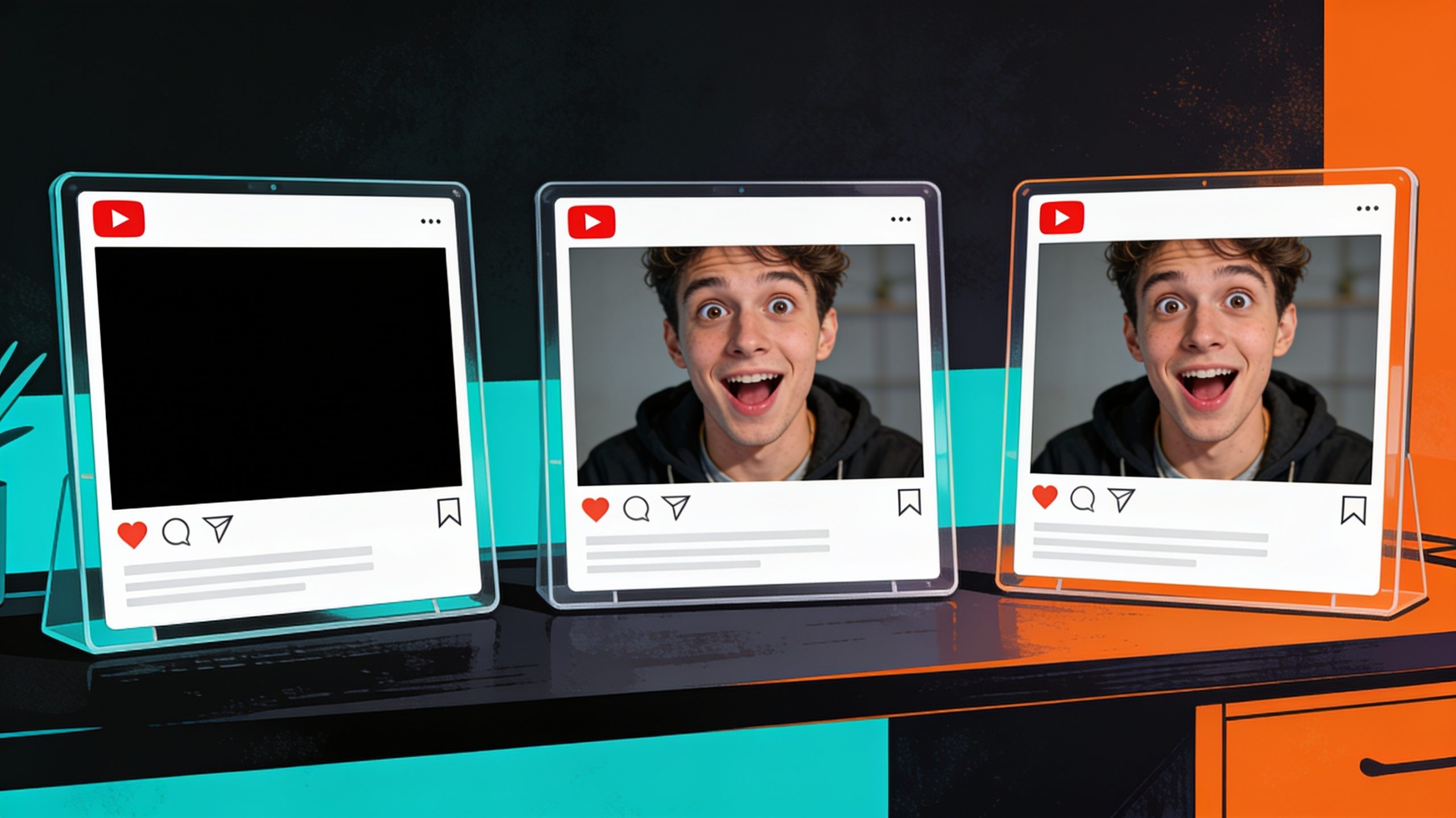
YouTube’s player chrome and mobile crop are ruthless. Design for a phone screen first. Aim for one clear subject, one emotion, and one idea — not a collage of five props fighting for attention.
- One focal face or object at large scale (roughly a third of the frame or more).
- High contrast between subject and background so it still reads at postage-stamp size.
- Empty “safe” space for 2–5 big title words you will add later in CapCut, Canva, Photoshop, or YouTube’s editor.
- Emotion over detail: surprise, curiosity, tension, delight — micro-expressions beat busy scenery.
OpenArt is strong at the still itself: lighting, character consistency, stylised backgrounds, product-ish mock scenes. Keep typography out of the generation when you can. AI text is still the part that breaks most thumbnails.
Step 1: Write a one-line thumbnail brief before you open OpenArt
Do not start with “make a cool thumbnail.” Start with the click promise that matches the video. Example briefs Studio Hacks actually uses for faceless or semi-faceless AI content:
- “Same AI host face, shocked expression, neon studio, empty left third for title about OpenArt Director.”
- “Close-up headphones + glowing waveform shapes, dark desk, room for ‘Suno on YouTube’ title.”
- “Split energy: calm lo-fi room vs explosive stage light, one character bridging both sides.”
Write the on-image title words now (even if you add them later): five words max. If you cannot say the click in five words, the thumbnail idea is muddy.
Step 2: Pick aspect ratio and canvas intent
YouTube’s recommended thumbnail size is 1280×720 (16:9). In OpenArt, generate at 16:9 whenever the still is meant to be the thumbnail base. If you are building a vertical Shorts cover first, generate 9:16, then crop a 16:9 safe zone for the long-form upload — but prefer a dedicated 16:9 generate for long-form videos so faces do not get crushed.
For this workflow we will use a text-to-image model path (Seedream-class models are a solid default for punchy, commercial-looking stills). Keep resolution high (2K when available) so you can crop without turning soft.
Step 3: Lock the face (or skip the face on purpose)
Channels grow faster when the packaging feels familiar. Two options:
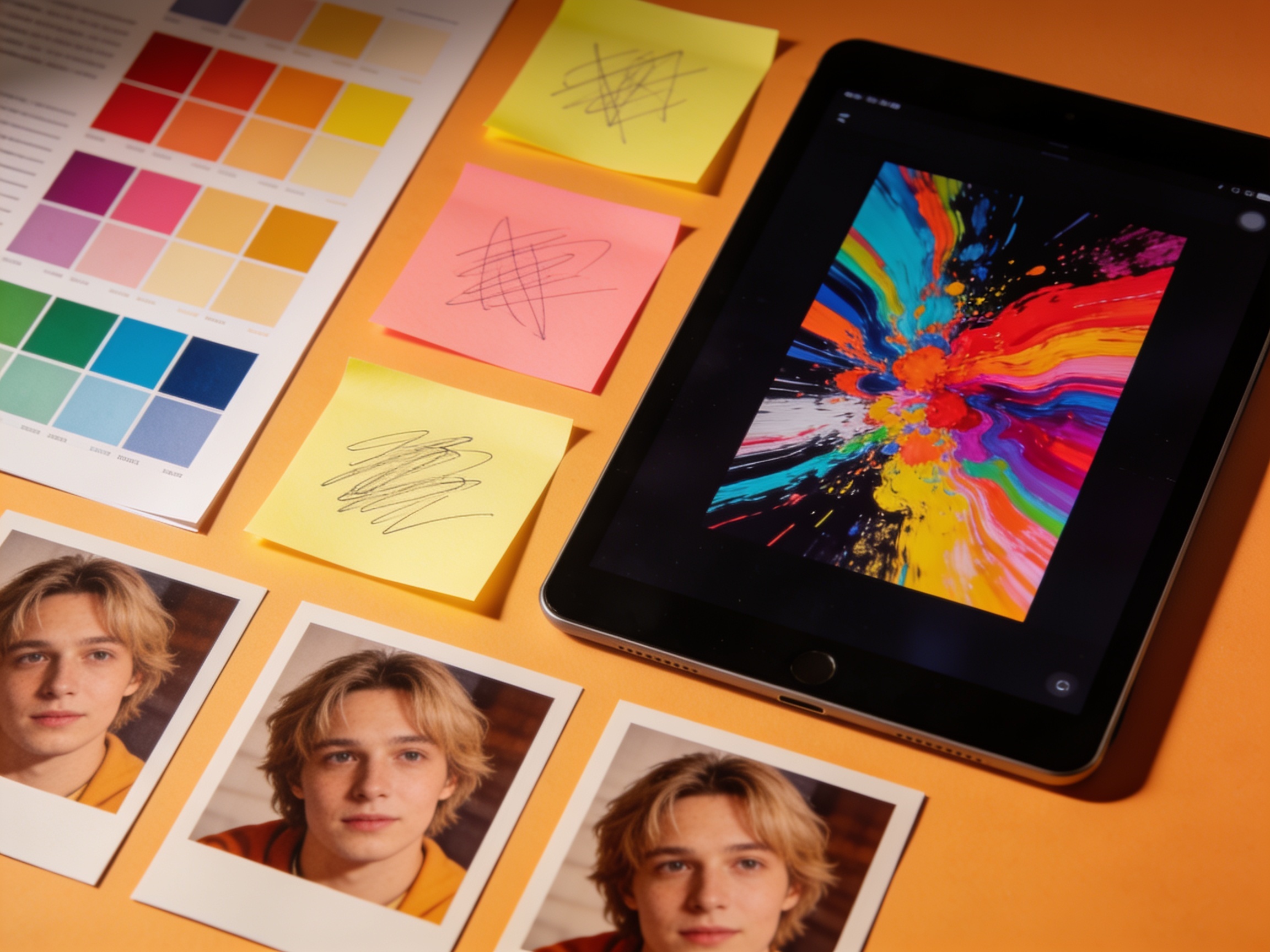
- Character-led: Use OpenArt Character Builder (or a saved character) so the same host face shows up across thumbnails. Shocked on Monday, smug on Wednesday — same person, different emotion.
- Object-led / faceless: Big prop, bold colour field, silhouette, or tool metaphor. Works well for tutorial channels that stay camera-off.
If you already built a Character for Reels, reuse it for thumbnails. Consistency between Shorts covers and long-form thumbnails is free branding.
Step 4: Prompt like a thumbnail art director
Paste a structured prompt, not a vibe dump. Use this skeleton and swap the brackets:
YouTube thumbnail still, 16:9, [SUBJECT + EMOTION], [CAMERA DISTANCE], [BACKGROUND with simple shapes], high contrast, saturated accent colour [COLOUR], empty [LEFT/RIGHT] third for title text, sharp focus on face/eyes, no logos, no watermarks, no readable letters in the image
Helpful knobs that usually move the click:
- Emotion words: wide eyes, raised brows, skeptical smirk, gasp, laser focus.
- Lighting: rim light, neon edge light, softbox beauty light, harsh overhead “interrogation” light.
- Background discipline: solid colour, soft bokeh, simple gradient, one prop max.
- Negative intent in plain English: “no tiny text, no watermarks, no cluttered collage, no multiple faces.”
Generate 3–6 variations. Pick with your phone brightness turned down. If it only looks good on a big monitor, it will fail on mobile.
Step 5: Edit inside OpenArt only when it saves a re-roll
When the composition is almost right, use OpenArt’s image editing tools to fix the cheap mistakes instead of burning credits on full regenerations:
- Inpaint a hand, earring, or weird background blob.
- Outpaint if you need more empty title space on one side.
- Subtle restyle if the colour grade is muddy but the pose is perfect.
Do not chase perfection for an hour. Thumbnail tests on YouTube teach faster than infinite polish.
Step 6: Add title text outside OpenArt
Export the clean still, then add 2–5 words in your editor of choice. Rules that keep CTR from dying:
- Thick sans-serif, high contrast (white fill + dark stroke, or the reverse).
- Title mirrors the video title’s promise without copying the whole title.
- Keep text out of the bottom-right where timestamps and progress UI crowd the frame.
- Avoid tiny subtitles; if you need a second line, make it half the size of the hero words — or cut it.
Step 7: Export and upload the right file
Export JPG or PNG, 1280×720 or larger at 16:9, under YouTube’s file-size limit. In YouTube Studio, upload the custom thumbnail (channel verification may be required on newer channels). For Shorts, you can still set a cover frame, but a custom 9:16 still generated in OpenArt often looks cleaner than a random mid-video freeze.
Pairing thumbnails with a Suno-backed video (optional but natural)
If the video is an AI music demo, OpenArt music video, or faceless “song + visual” Short, make the thumbnail match the track mood: warmer colours for lo-fi, harsher contrast for rock or trailer energy. Generate the track in Suno first so you know the vibe, then prompt OpenArt with that mood language. Keep commercial publishing aligned with each tool’s plan rules (more below).
A simple A/B test loop that does not waste a week
- Ship version A for 48–72 hours.
- Swap only the thumbnail (same title) if impressions are fine but CTR is soft.
- Change one variable: emotion, background colour, or title words — not all three.
- Keep winners in a folder named by format (“face-left-cyan”, “object-center-red”) so you stop reinventing the wheel.
Pricing and licence notes (re-check before you monetise)
Plans change. As of November 2026, OpenArt’s public pricing page lists monthly rates of about $14 for Starter, $34 for Plus, $56 for Pro, and $240 for Wonder. Annual billing is discounted; current promo pricing is on OpenArt’s pricing page. Credit pools and parallel generations scale up the ladder. Treat Starter as experimentation; for commercial publishing workflows, plan on Plus or higher and confirm the licence text inside your OpenArt account before you run ads or client work. OpenArt is 18+.
Suno’s public pricing currently shows a Free plan at $0, Pro around $8/month on the yearly-billed offer, Premier around $24/month on the yearly-billed offer, and Platinum around $100/month on the yearly-billed offer (monthly rack rates can differ; Platinum’s is $120). Commercial use rights sit on the paid plans — free output is not the plan to rely on for monetised YouTube. If you need an account, use this Suno link.
Common thumbnail mistakes (and the fix)
- Too much detail: Zoom in. Crop harder.
- AI gibberish text baked into the image: Regenerate with “no readable text” and add words in an editor.
- Different face every upload: Lock a Character or go fully object-led.
- Low contrast beige mush: Force a bold accent colour and darker shadows.
- Title repeats the video title verbatim in tiny type: Shorten to the emotional promise.
Quick checklist before you hit publish
- Readable at phone size?
- One subject, one emotion?
- Title words added cleanly (not AI-warped)?
- Matches the actual video content (no bait)?
- Licence/plan OK for how you monetise?
- Saved to your swipe file for the next upload?
Wrap-up
Making YouTube thumbnails with OpenArt is less about “one magic prompt” and more about a repeatable packaging system: brief → 16:9 generate → consistent face or bold object → light edits → real typography → test. Use that loop on every upload and your channel starts to look intentional instead of random.
Ready to build the stills? Open OpenArt. Need the soundtrack side of a music or faceless video? Start with Suno if you do not have an account yet.


)