This post contains affiliate links. If you sign up through our links, we may earn a commission at no extra cost to you. Below is a practical walkthrough of how to make an AI music video in OpenArt by uploading a track from Suno (or any audio file you already have) and turning it into a share-ready clip for Reels, Shorts, or YouTube.
If you want one studio for characters, images, and video, start with OpenArt. If you do not already have a Suno account for the music side of this workflow, sign up for Suno first so you can generate or download a track to upload.
OpenArt is more than an image generator. In our OpenArt AI review we cover the wider studio. This guide stays focused on the music-video path: audio in, video out, with an optional consistent character for a faceless channel look.
Why pair Suno audio with OpenArt video
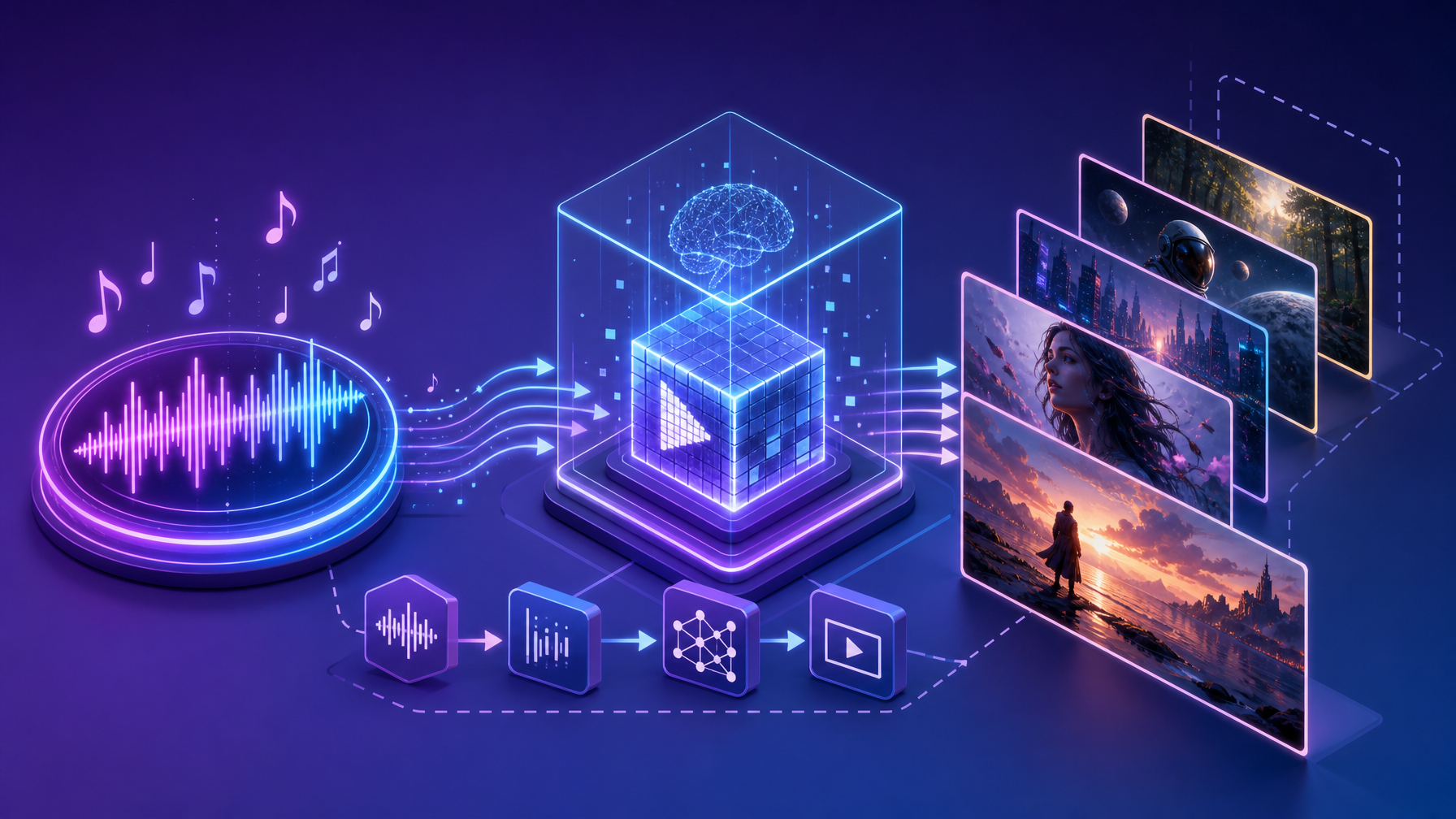
Suno is strong at turning a prompt into a full song. OpenArt is strong at turning that song into visuals you can post. Used together, you can:
- Generate a track in Suno (or use an existing download)
- Upload the audio into OpenArt’s music-video / video workflow
- Optionally lock a character so every clip feels on-brand
- Export vertical or landscape versions for Reels, TikTok, Shorts, and long-form YouTube
UI labels inside both products can change over time. Where a button name might differ in your account, follow the same workflow: create or download audio → open OpenArt video tools → attach audio → generate → download.
What you need before you start
- An OpenArt account (18+). Starter is useful for experiments; commercial use rights typically start at Plus.
- A Suno account if you still need to create the track (free tier exists; paid plans add volume and commercial terms — always check the current plan page).
- A short brief: genre, mood, length target (for example 30–60 seconds for Reels/Shorts), and whether you want a recurring character.
- Optional: a character reference already saved in OpenArt if you want series-style consistency.
Quick pricing context (check live pages)
OpenArt plans commonly sit around Starter ~$13–14/seat/mo (promo), Plus ~$27–34 with commercial use rights, Pro ~$44–56, and Wonder higher. Commercial use generally starts at Plus; treat Starter as experiment-only. OpenArt is 18+.
Suno offers a free tier (the site has mentioned up to roughly 10 songs/day on free; confirm current limits on their plans page). Pro is often listed around ~500 songs/mo with commercial / royalty-free terms per Suno’s site; Premier sits higher. Do not assume older numbers still apply — open the plan page before you budget a channel.
Step 1: Create or download your Suno track
Open Suno and create a track that matches the video you want. For Shorts and Reels, aim for a clean hook in the first few seconds and a length that trims easily to 15–60 seconds.
Simple create path
- Describe the style, mood, and energy (for example: upbeat indie pop, warm female vocal, catchy chorus).
- Generate a few versions and pick the one with the strongest opening.
- Download the audio file Suno provides for that take.
Want more control over structure?
If you need style tags, lyric control, or section structure, use our walkthrough on how to use Suno Custom Mode. Custom Mode is optional for this OpenArt guide, but it helps when you want a chorus to land exactly where your video cut needs it.
Already have an MP3 or WAV from another session? Skip generation and go straight to OpenArt with that file. The OpenArt side of this tutorial does not require the track to be brand-new — only that you have rights to use it for your intended publish destination.
Step 2: Open OpenArt and choose a music-video workflow
Sign in to OpenArt. Look for video creation tools — depending on your plan and the current UI, that may appear as a Music Video flow, a general video generator that accepts audio, or Director-style tools for longer hosted clips. The goal is the same: attach your Suno audio and generate visuals that follow the beat or scene brief.
- Prefer vertical (9:16) if the first publish target is Reels, TikTok, or YouTube Shorts.
- Prefer landscape (16:9) if you are building a longer YouTube cut or a Director-style review.
- Keep prompts concrete: setting, lighting, motion, and character — not vague “make it cool.”
For a clean affiliate hop from YouTube descriptions later, studiohacks.net keeps /openart/ as a dedicated OpenArt redirect. This article explains the workflow; that hop stays as the short link you can paste in video descriptions.
Step 3: Upload your Suno audio
In the OpenArt video / music-video flow:
- Choose upload or attach audio (wording varies).
- Select the Suno download from your computer.
- Confirm the clip length OpenArt will use. Trim inside OpenArt if the tool offers it, or pre-trim the file so the hook starts immediately.
If upload fails, check file format and size limits in the tool tip or help text, then re-export from Suno or convert to a common format such as MP3/WAV before trying again. Product limits change; trust the on-screen error over any outdated screenshot.
Step 4 (optional): Lock a consistent character
Faceless channels convert better when viewers recognize the same “host” silhouette or stylized character across posts. In OpenArt:
- Create or select a character / reference you already like.
- Reuse that same character for this music video and the next ones in the series.
- Keep wardrobe and color accents stable so the feed feels intentional.
You do not need a real likeness. A stylized silhouette or illustrated persona is enough for Reels and Shorts, and it avoids the “random new face every post” problem.
Step 5: Write a tight visual prompt
Your audio carries the song. Your prompt should tell OpenArt what to show. Strong prompts usually include:
- Subject: who or what appears on screen (character, abstract visuals, city night drive, studio lights).
- Motion: slow push-in, beat-synced cuts, gentle camera drift.
- Style: cinematic, neon, soft daylight, anime, documentary — pick one lane.
- Aspect ratio: 9:16 for short-form, 16:9 for YouTube.
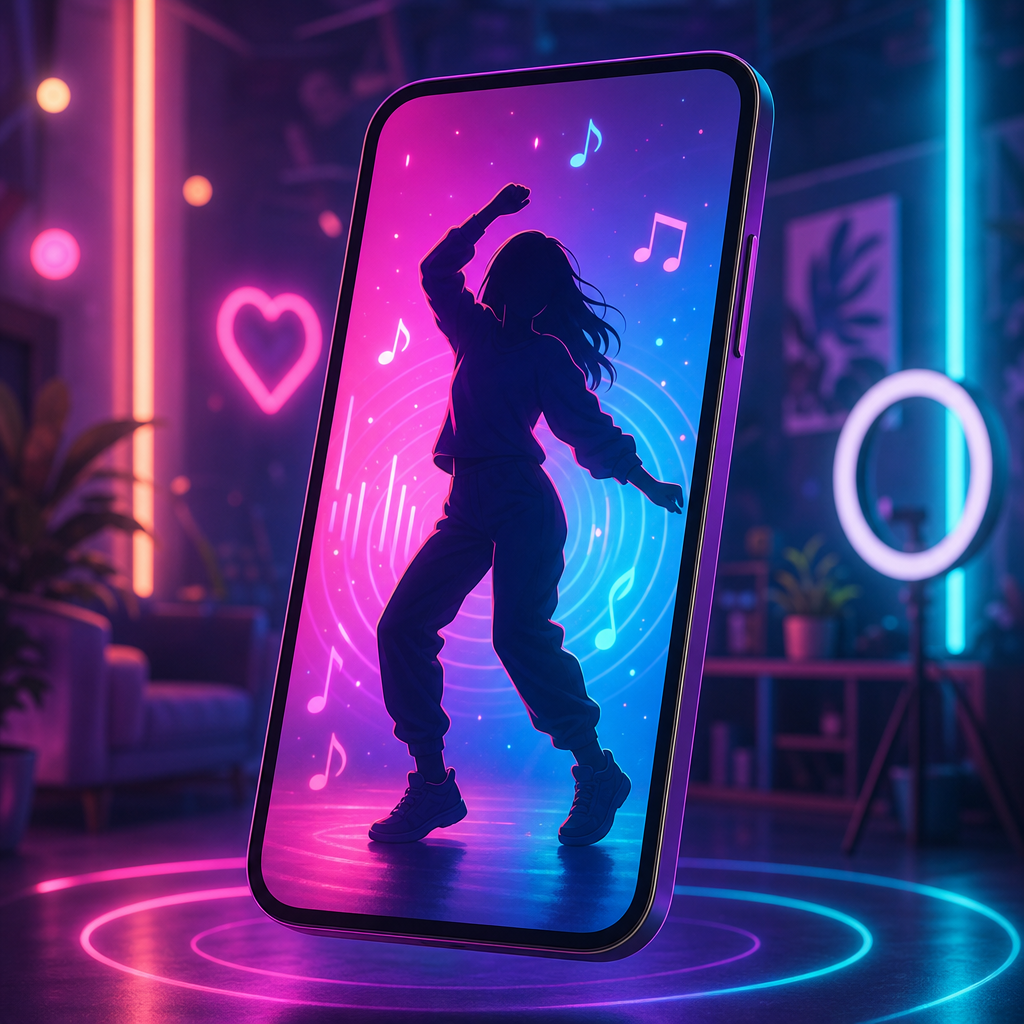
Example brief (adapt freely): “Neon night street, stylized faceless creator silhouette nodding to the beat, soft bokeh lights, cinematic color grade, vertical frame, smooth camera drift, no logos, no on-screen text.”
Generate once, review, then iterate. Change one variable at a time (lighting, camera, outfit) so you learn what OpenArt is responding to.
Step 6: Generate, review, and pick a take
Run the generation and watch the full clip with sound on. Check:
- Does the first 1–2 seconds feel scroll-stopping?
- Does the character (if used) stay consistent?
- Are there weird artifacts on hands, faces, or text you did not ask for?
- Does the energy match the Suno track’s chorus and drop?
If the visuals are strong but the cut is long, trim in your editor of choice — or regenerate a shorter segment focused on the hook. Avoid inventing elaborate multi-app pipelines; the win is a simple loop you can repeat daily.
Step 7: Export for Reels, Shorts, and YouTube
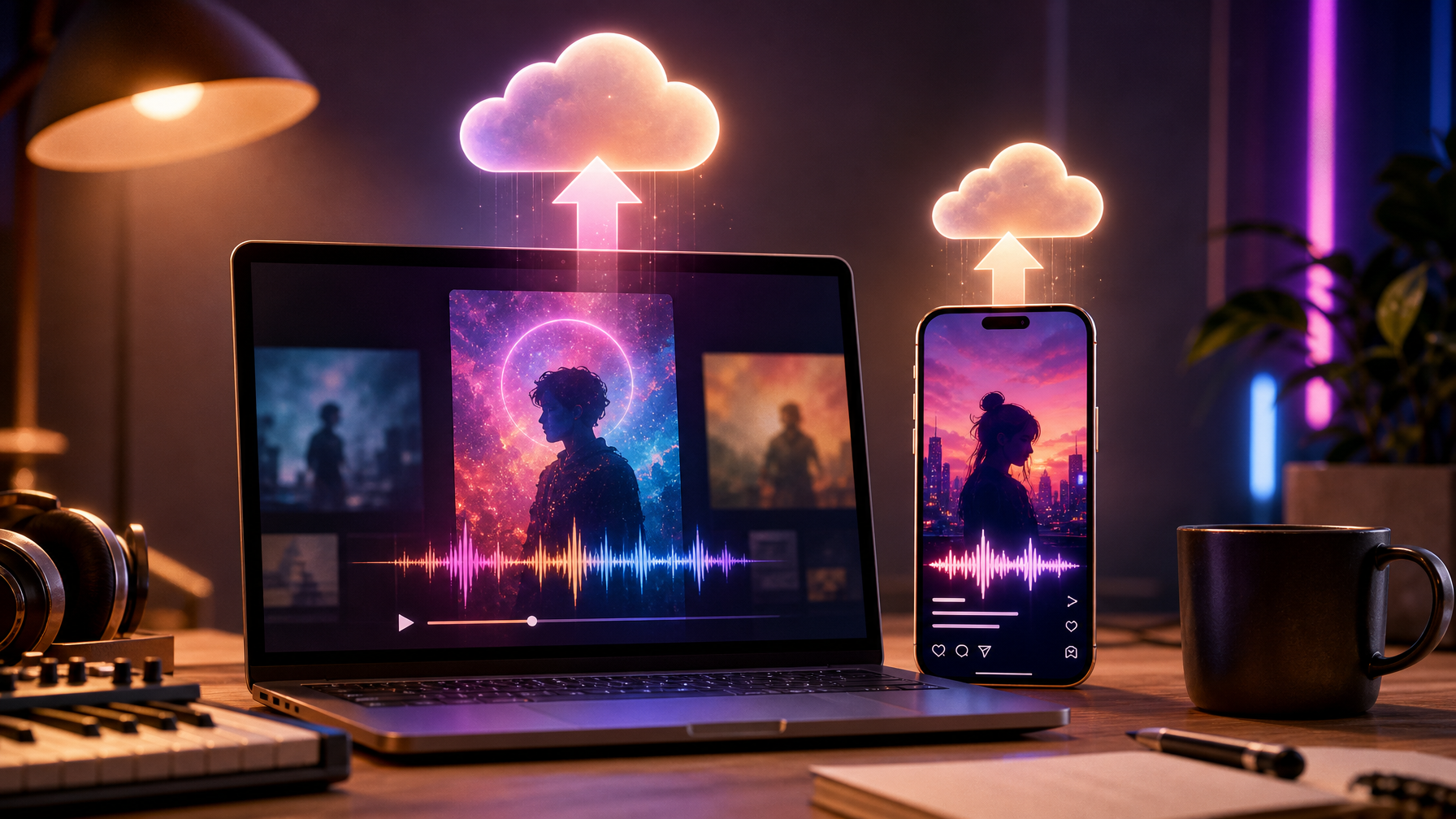
Download the finished video from OpenArt. Then:
- Reels / TikTok / Shorts: keep 9:16, punchy caption, on-screen text only if it is readable and intentional.
- YouTube long-form: use 16:9, or combine several short OpenArt clips under a spoken or text intro.
- Captions: enable auto-captions on the platform after upload when available.
When you promote OpenArt in a YouTube description, you can use the clean hop at studiohacks.net/openart/, or link readers to the full OpenArt AI review for plan context.
Commercial use and rights — read before you monetize
Two products mean two sets of terms:
- OpenArt: commercial use typically starts at Plus; Starter is better treated as experiment-only. Confirm your seat plan before using clips in ads or client work.
- Suno: free vs Pro/Premier terms differ. Pro is commonly associated with commercial / royalty-free usage per Suno’s own plan copy — always re-check the live plan page and license language for your country and use case.
Platform rules (YouTube Content ID, Instagram music labels, TikTok commercial music) can still apply even when the AI tools grant rights. If you are monetizing, keep your plan receipts and avoid uploading tracks you do not have permission to use.
A simple daily loop that actually ships
If your goal is volume without burnout, keep the loop boring:
- Generate or reuse a Suno track (Suno signup).
- Upload into OpenArt video / Music Video tools (OpenArt signup).
- Optional: same character every time.
- Export 9:16 for short-form; batch landscape later if needed.
- Post, then note which hooks retained viewers.
That is enough for a faceless music or AI-tools channel. You can layer Director-style longer videos later once the short-form habit is solid.
FAQ
Can I use a non-Suno track?
Yes. OpenArt cares about the audio file you upload. Suno is simply a fast way to create original music for this workflow. If you already have licensed audio, use that instead.
Do I need OpenArt Plus on day one?
Not for learning the buttons. If you plan commercial publishing or client work, move to a plan that includes commercial use (typically Plus and above) before you scale.
Will this cannibalize a full OpenArt review post?
No. This page targets the how-to intent how to make an AI music video in OpenArt. Broader product coverage stays on the review URL; Suno-only deep dives stay on their own tutorials.
Start your first AI music video today
Ready to try it? Create your OpenArt account and open a video / Music Video flow. If you still need the track, sign up for Suno, generate something with a strong hook, download it, and upload it into OpenArt. One polished clip beats ten unfinished experiments — ship the first version, then iterate.



)